WEP vs. WPA vs. WPA2 vs. WPA3: Which Wi-Fi security keeps you safe?


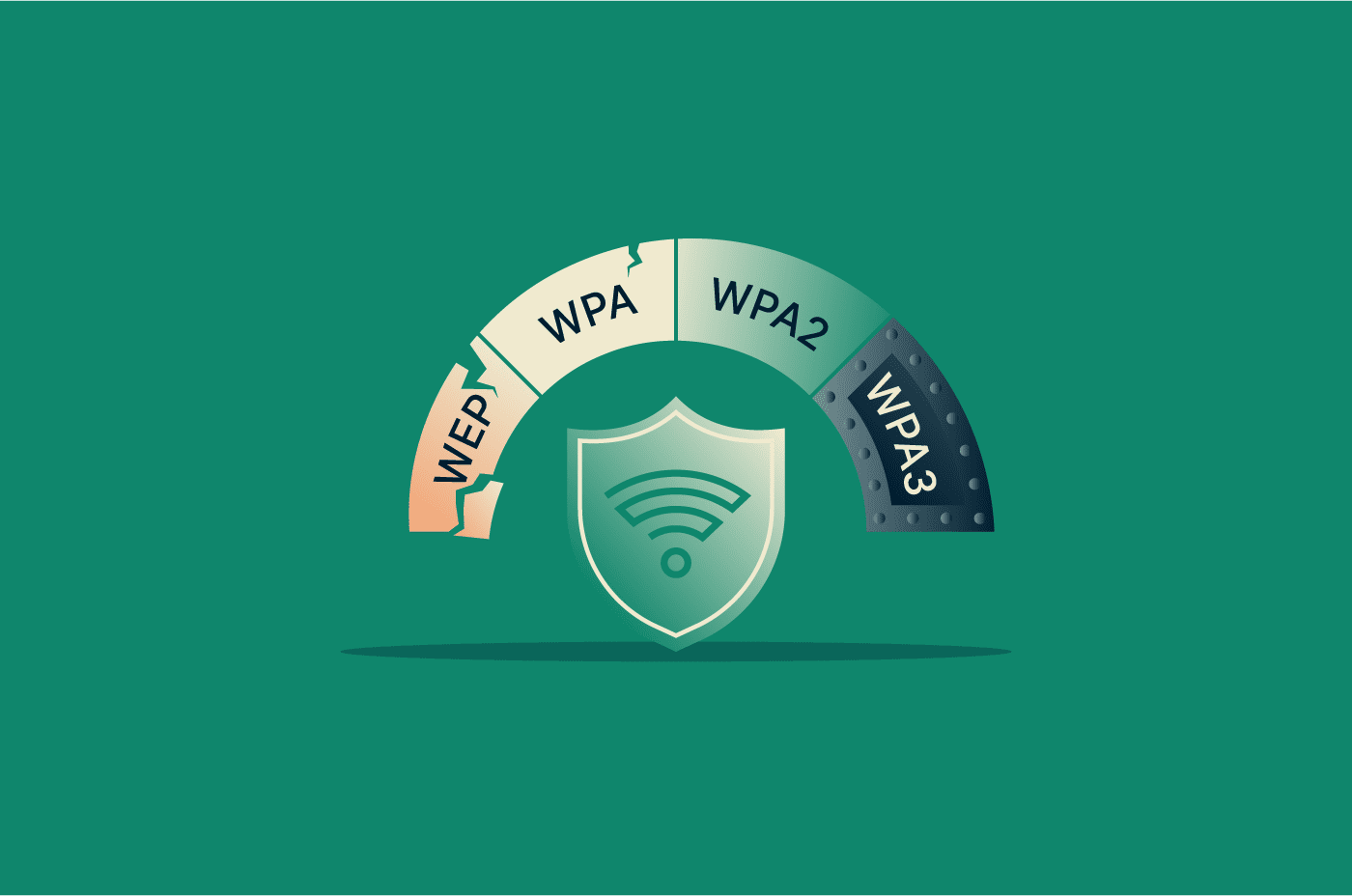
Wi-Fi security standards protect wireless networks from unauthorized access and data exposure. These standards have evolved over time, from Wired Equivalent Privacy (WEP) to Wi-Fi Protected Access (WPA), WPA2, and WPA3.
Some older protocols are now considered insecure and therefore obsolete, while newer ones provide stronger defenses against modern attacks. Understanding how they compare helps to evaluate a network's security and choose the right standard.
This guide covers four Wi-Fi security protocols, their benefits, security vulnerabilities, and best practices for protecting your wireless connections.
Wi-Fi security basics
Wi-Fi uses radio signals rather than physical cables, so nearby attackers can intercept traffic if a network isn't properly secured. Wi-Fi security protocols address this through encryption and authentication.
What is a Wi-Fi security protocol?
A Wi-Fi security protocol defines how a wireless network encrypts data and manages access.
Since the late 1990s, Wi-Fi security protocols have gone through four major generations: WEP, WPA, WPA2, and WPA3. Each replaced the last after researchers discovered weaknesses that attackers could exploit.
How encryption and authentication work
Authentication determines whether a device is allowed to join the network. On most home networks, this process happens when a device enters the correct Wi-Fi password. In enterprise environments, centralized systems such as the Institute of Electrical and Electronics Engineers (IEEE) 802.1X authentication servers verify credentials before granting access.
Once a device is authenticated, encryption protects the data it sends and receives. Encryption converts readable information into ciphertext, so even if someone intercepts wireless traffic, they can’t interpret it without the correct cryptographic key.
Read more: How to protect Wi-Fi from neighbors and keep it secure.
TKIP vs. AES explained
Two encryption methods commonly associated with Wi-Fi security are Temporal Key Integrity Protocol (TKIP) and Advanced Encryption Standard (AES).
TKIP was introduced with WPA as a temporary improvement over WEP. It was designed to strengthen security without requiring new hardware, allowing older Wi-Fi devices to improve security through software or firmware updates.
However, TKIP was never intended as a long-term solution. AES-based protection replaced it as a much stronger approach and is widely used in modern Wi-Fi security.
WPA2 commonly uses AES through Counter Mode Cipher Block Chaining Message Authentication Code Protocol (CCMP), while WPA3 builds on stronger protections with improved authentication and mandatory security features, depending on the mode and implementation.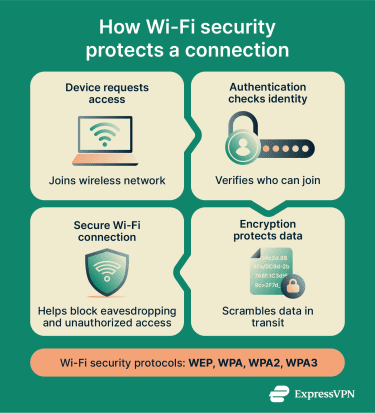
What is Wired Equivalent Privacy (WEP), and why is it insecure?
WEP is the original security protocol introduced with the IEEE 802.11 wireless networking standard in 1997. It was designed to encrypt data transmitted between devices and access points, aiming to provide privacy comparable to that of traditional wired connections.
Although WEP was an important early step in wireless security, it was later shown to have serious vulnerabilities that enabled practical attacks.
How WEP works
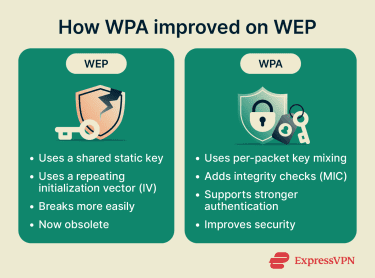
WEP uses a symmetric encryption system based on the Rivest Cipher 4 (RC4) stream cipher. On a WEP-secured network, devices typically share the same secret key, which is used to encrypt and decrypt data packets.
When a device sends data, WEP combines the shared secret key with a 24-bit initialization vector (IV) to generate a unique encryption stream. This stream scrambles the data before transmission so that intercepted packets can’t be read without the correct key.
WEP limitations and risks
Several design flaws make WEP vulnerable to attacks:
- Shared static key: Devices on a WEP network typically rely on the same shared key. Attackers who capture enough traffic can analyze patterns and work toward recovering the key.
- Short IV: WEP's 24-bit IV is too small for busy networks. It repeats frequently, giving attackers packets encrypted with identical keystream material to analyze.
- Weak encryption implementation: Flaws in how WEP uses RC4 and the IV make it vulnerable to statistical cryptographic attacks.
- Weak overall key handling: Longer WEP key sizes do not fix the protocol’s design flaws. In practice, WEP can often be broken by capturing and analyzing traffic rather than by brute-forcing a short numeric password.
Researchers demonstrated practical WEP-cracking techniques in the early 2000s, showing that attackers could recover keys by passively capturing traffic. Because of these weaknesses, WEP should be disabled entirely wherever possible.
Where WEP still appears
Despite its flaws, WEP can still appear on legacy routers, gaming consoles, and other devices that don't support newer protections. Networks sometimes isolate these devices on separate segments or add compensating controls to reduce risk. However, modern platforms generally discourage using WEP and recommend stronger options such as WPA2-AES or WPA3.
What is Wi-Fi Protected Access (WPA)?
WPA is a wireless security protocol introduced in 2003 by the Wi-Fi Alliance to replace WEP. It was designed as an interim fix that improved wireless security without requiring new hardware.
How WPA improved on WEP
WPA addressed several of WEP's weaknesses by introducing:
- Per-packet key mixing: WPA uses TKIP, which improves per-packet key handling and reduces the risk of key recovery through traffic analysis.
- Message integrity protection: A message integrity check (MIC) helps detect packet tampering during transmission.
- Stronger authentication support: WPA supports the Extensible Authentication Protocol (EAP) through IEEE 802.1X, allowing enterprise networks to verify credentials against an authentication server before granting access. Home networks typically use pre-shared key (PSK) authentication.
Why WPA is no longer recommended
WPA relies on TKIP encryption, which has known weaknesses and is now considered legacy security. TKIP was designed to run on existing WEP hardware, so it retained RC4 as its underlying cipher rather than moving to a stronger long-term design.
Attackers within range can exploit TKIP weaknesses to forge packets, inject limited amounts of traffic, or recover parts of transmitted data under certain conditions. Although WPA was a meaningful improvement over WEP, it's no longer considered strong protection for modern Wi-Fi networks.
On some older routers, WPA may still appear in settings such as:
- WPA-PSK (TKIP)
- WPA/WPA2 mixed mode
- WPA-TKIP encryption
These configurations exist mainly for compatibility with older devices, but enabling them can weaken the network's overall security by allowing connections over outdated encryption. Microsoft flags TKIP as insecure, and the Wi-Fi Alliance recommends removing support for it entirely.
What is WPA2?
WPA2 is a wireless security protocol introduced in 2004 as part of the Wi-Fi Alliance certification program for the complete ratified version of IEEE 802.11i.
It comes in two modes:
- WPA2-Personal (WPA2-PSK): In home networks, devices connect using a shared Wi-Fi password.
- WPA2-Enterprise: In corporate environments, devices authenticate through centralized IEEE 802.1X authentication servers.
Both modes use the same core security framework, but WPA2-Enterprise provides stronger identity verification and key management for large networks.
How WPA2 works
WPA2 commonly protects wireless traffic using AES through CCMP. When a device connects to a WPA2 network, it doesn’t use the password itself as the traffic-encryption key.
Instead, the device and access point perform a four-way handshake to confirm they share the necessary secret material and derive fresh session keys for that connection. These session keys are then used to protect traffic between the device and the network.
How WPA2 improved on WPA
WPA2 introduced AES-CCMP as the standard for stronger protection, replacing WPA’s interim reliance on TKIP for modern secure deployments. CCMP is based on AES and provides both confidentiality and integrity protection. This made WPA2 the dominant Wi-Fi security standard for many years.
WPA2 risks and how to mitigate them
WPA2 has known vulnerabilities. The most notable is the key reinstallation attack (KRACK), which manipulates the four-way handshake to induce key reinstallation, potentially allowing attackers within range to intercept, replay, or manipulate traffic, depending on the implementation and protocol details.
WPA2-Personal networks are also vulnerable to brute-force and dictionary attacks, where an attacker captures the four-way handshake and runs password attempts offline until one matches.
A dictionary attack checks passwords from a precompiled wordlist; a brute-force attack cycles through all possible character combinations. Both are far more likely to succeed when the Wi-Fi password is short, common, or predictable.
To mitigate these risks:
- Keep routers and devices updated: Security patches fix known vulnerabilities, including KRACK.
- Use strong Wi-Fi passwords: This is especially important for WPA2-Personal networks.
- Disable outdated compatibility modes: Avoid settings that allow TKIP or mixed WPA/WPA2 modes. Upgrade to WPA3 when possible.
What is WPA3?
WPA3 is the latest generation of Wi-Fi security for personal and enterprise networks. The Wi-Fi Alliance introduced it in 2018 as a successor to WPA2. WPA2 remained in use during the transition, but WPA3 added stronger protections for modern Wi-Fi networks.
How WPA3 works
In WPA3-Personal, the old pre-shared-key authentication exchange used by WPA2 is replaced with Simultaneous Authentication of Equals (SAE). This means attackers can't simply capture authentication data and run large-scale offline password-guessing attacks as they can against WPA2-Personal, making such attacks more difficult.
WPA3 also strengthens protection for management frames, which are the signals Wi-Fi devices use to connect, stay connected, and disconnect from a network. WPA2 supports protected management frames as an optional feature, but WPA3 makes this protection mandatory, helping reduce spoofed deauthentication and disassociation attacks.
For enterprise networks, WPA3 adds an optional 192-bit security mode that uses a stricter set of cryptographic algorithms for higher-security environments such as government and other sensitive enterprise deployments.
WPA3 compatibility and upgrade tips
Not every device supports WPA3. If you're upgrading your network, start here:
- Use WPA3 if all your devices support it.
- Use WPA2/WPA3 Transitional mode if your older devices still need access.
- Fall back to WPA2-Personal (AES) only when needed.
- Avoid older settings such as WPA, WPA/WPA2 mixed mode, or TKIP-based options.
When buying a new router, WPA3 support is worth prioritizing. If your router already supports WPA3, enabling it is one of the simplest meaningful Wi-Fi security upgrades available.
WEP vs. WPA vs. WPA2 vs. WPA3 compared
| Protocol | Security strength | Performance impact | Compatibility | Recommendation |
| WEP | Very weak. Attackers can often recover encryption keys quickly after capturing enough traffic, especially on busy networks. | Can limit network speeds by forcing legacy compatibility modes. | Mostly found on very old routers and legacy devices. | Avoid entirely unless required for isolated legacy hardware. |
| WPA | Weak. Relies on TKIP, which has known vulnerabilities. | Can reduce throughput by preventing newer high-throughput modes. | Found on older routers and devices predating WPA2. | Avoid unless needed temporarily for compatibility with older devices. |
| WPA2 | Strong when configured properly. AES-CCMP is the standard secure mode. | Good performance on most modern networks. | Widely supported across routers, laptops, phones, and many Internet of Things (IoT) devices. | Best fallback when WPA3 is unavailable. |
| WPA3 | Strongest widely available option. Uses SAE in WPA3-Personal and is more resistant to offline password-guessing attacks. | Comparable to WPA2 on modern hardware. | Supported on newer routers and devices; older devices may need transitional mode. | Best choice for new networks. |
How to check your current Wi-Fi security protocol
To find out which security protocol your Wi-Fi network uses, check the network details on your device or in your router settings.
On Windows
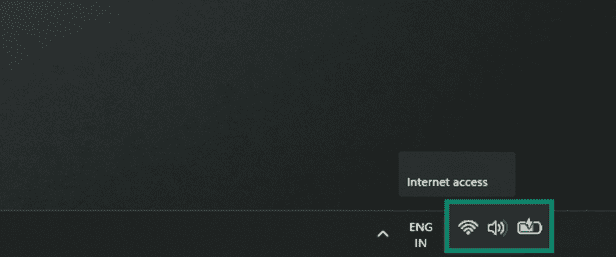
- Click the Wi-Fi icon in the bottom-right corner of the taskbar.
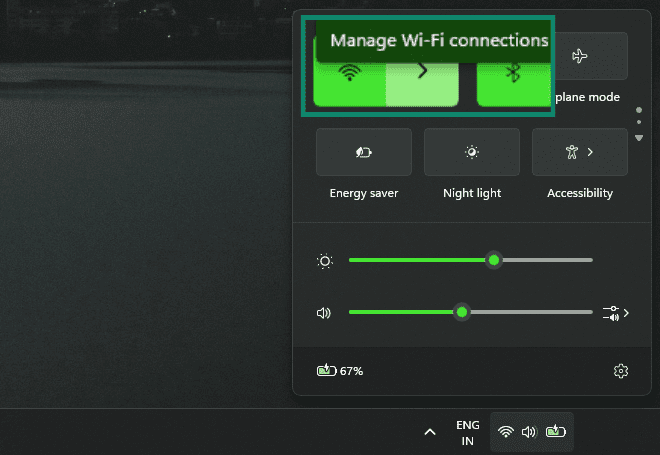
- Click the arrow icon next to the Wi-Fi control to open Manage Wi-Fi connections.
- Click the (i) icon next to the connected network.
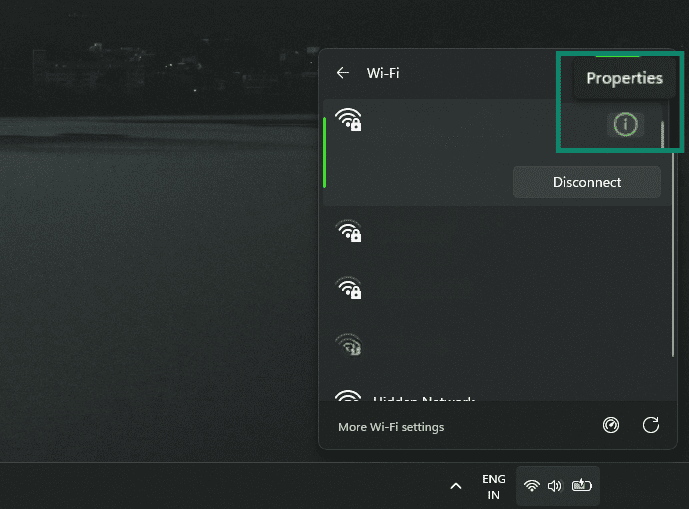
- Under Network & internet, find Security type. In the expanded Network & internet box, you might first need to click the arrow next to WiFi, then select your connected network again.
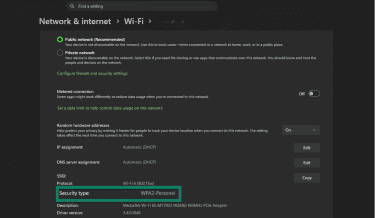
This shows the security protocol your network uses, along with details that may include the Media Access Control (MAC) address, network band, and connection information.
On macOS
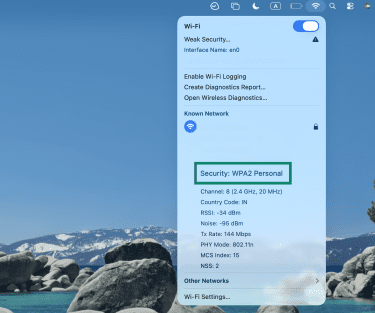
- Hold the Option key and click the Wi-Fi icon in the menu bar. Alternatively, open System Settings > Wi-Fi, and find the connected network, then click Details.
- Look for the Security field in the network details, if shown. If the exact security type is not clearly listed, check the router’s admin panel for the network’s Wi-Fi security setting.
On Android
- Open Settings, then tap Network & internet.
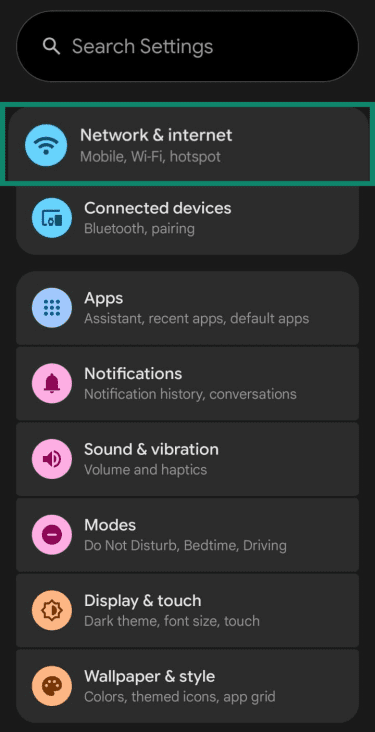
- Tap Internet or Wi-Fi.
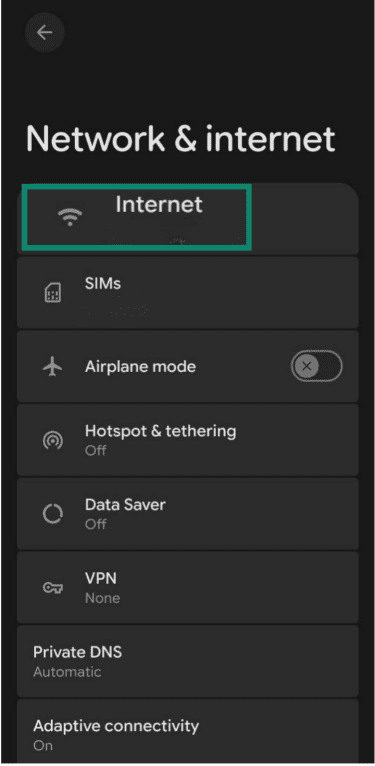
- Tap the gear icon next to the connected network.
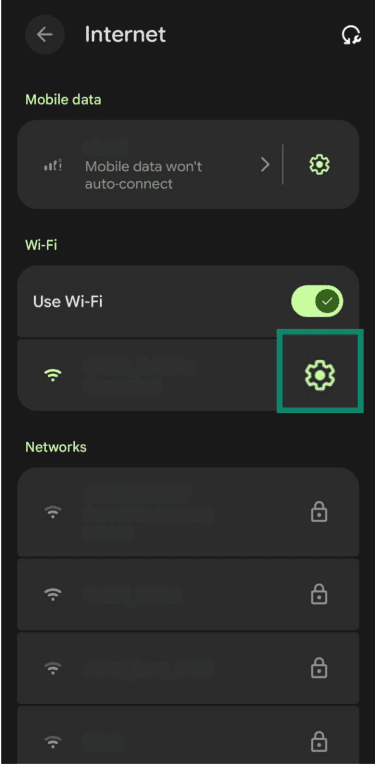
- Check the Security or Network details section.
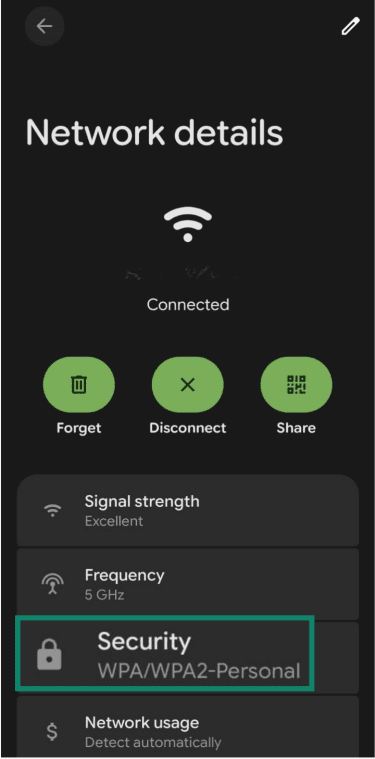
Note: Menu names can vary by device and Android version.
On iPhone and iPad
Unlike Windows or Android, iPhone and iPad settings usually don’t show the exact Wi-Fi security protocol. You can tap the information icon next to a network in Settings > Wi-Fi, but this mainly shows connection details and may display a warning if the network uses weak security.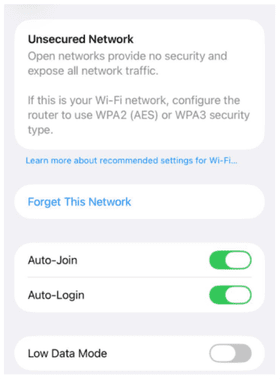
To confirm the exact security protocol, check the router’s admin panel or use another device that exposes the network’s security type more clearly.
On your router
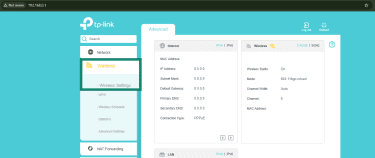
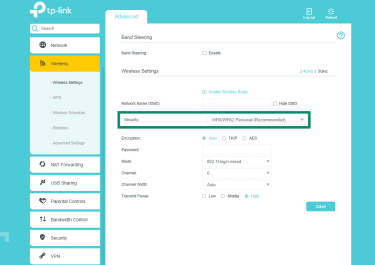
The most reliable way to confirm your security protocol is through your router's admin panel. The interface varies by router manufacturer and model, but the general steps are the same.
- Open a browser and enter your router’s local address or login page. This is often 192.168.0.1 or 192.168.1.1, but it may be different depending on the router.
- Log in to the router admin panel.
- Open Wi-Fi settings, Wireless settings, or Wireless security settings.
- Look for Security, Security mode, Security Options, or Encryption type.
Note: Some newer routers use a mobile app instead of a browser-based admin panel. Linksys, for example, documents Wi-Fi security changes through its app for some models.
How to improve your Wi-Fi security
Even if your network already uses WPA2 or WPA3, a few changes can strengthen your Wi-Fi security.
- Update your router firmware regularly: Firmware updates patch known vulnerabilities and improve protection against new threats. Check for updates in your router's admin panel or companion app.
- Use a strong Wi-Fi password: A long, unique password makes offline guessing and brute-force attacks much harder, especially on WPA2-Personal networks.
- Disable Wi-Fi Protected Setup (WPS): WPS lets devices connect with a button press or a PIN instead of a password, but the PIN-based method has known security weaknesses. Disabling WPS can remove an unnecessary entry point.
- Change default router admin credentials: Many routers ship with default usernames and passwords that are easy to find online. Changing these credentials helps prevent unauthorized access to router settings.
- Set up a guest network: A guest network lets visitors use your Wi-Fi without giving them the same level of access to the main network and its connected devices, depending on the router’s isolation features and settings.
FAQ: Common questions about WEP vs. WPA vs. WPA2 vs. WPA3
How do I tell if I have WEP or WPA?
What's the best encryption mode for Wi-Fi?
Should I use WEP, WPA, or WPA2?
How can I improve my Wi-Fi security?
Why is WPA2 better than WEP?
Is WPA3 necessary for home networks?
Is WPA2 still safe to use?
Should I choose WPA2 AES or WPA3?
Take the first step to protect yourself online. Try ExpressVPN risk-free.
Get ExpressVPN