
What is Bcc in email? A clear guide to using blind copy the right way


Email has come a long way since the days of carbon paper, but some of its oldest conventions still shape how we communicate today, including the blind carbon copy (Bcc) feature. It’s a familiar feature, but using it carelessly can lead to anything from an awkward workplace moment to a privacy incident.
This guide explains what Bcc is, how it works, when to use it, and what can go wrong if it's used carelessly.
The function of Bcc in email
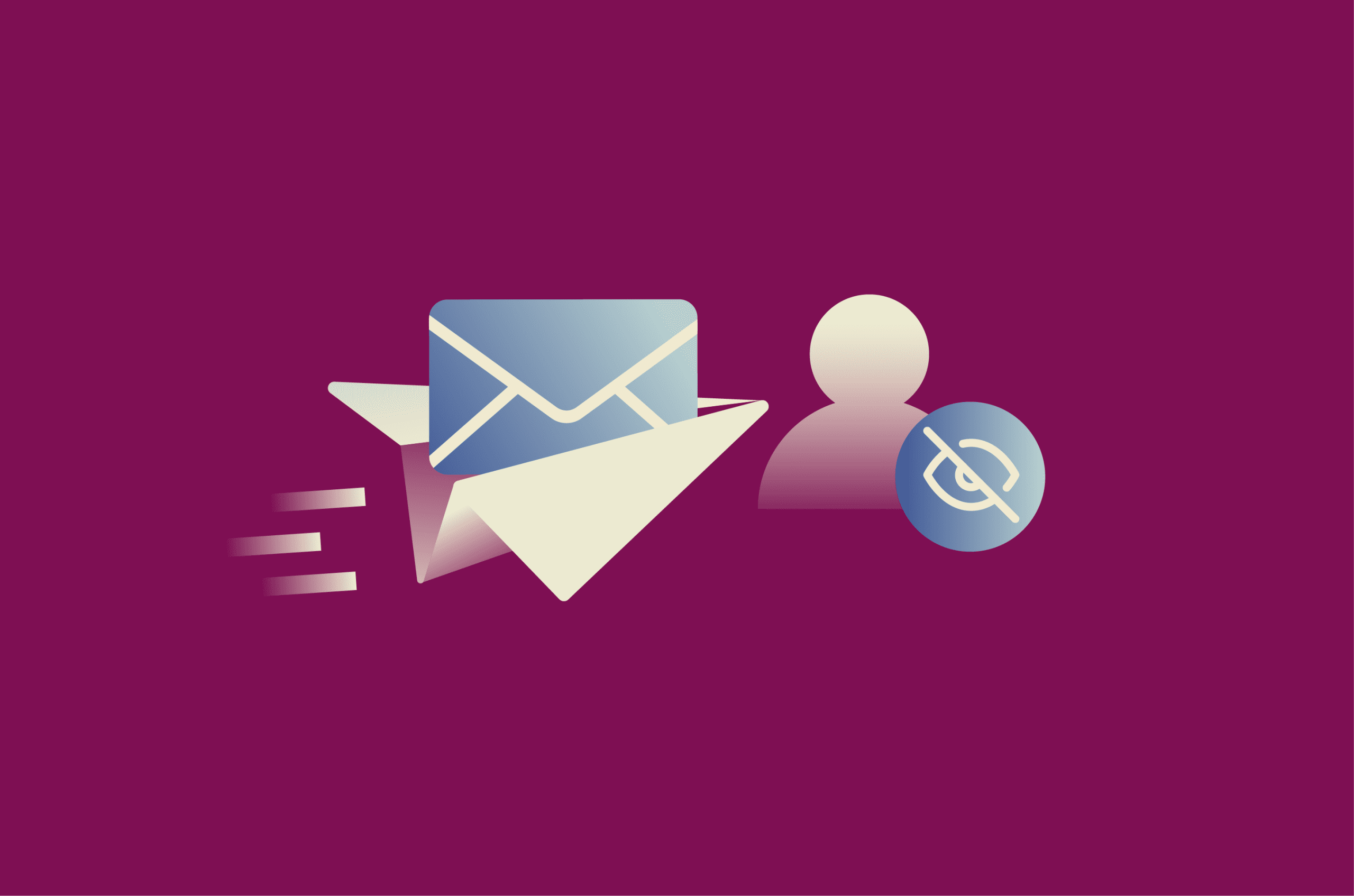
The Bcc field allows senders to include additional recipients in an email while keeping those recipients hidden from the To, carbon copy (Cc), and other Bcc recipients. Bcc recipients receive the same message as everyone else, but they may still be able to see anyone listed in the To or Cc fields.
Understanding the difference between Cc and Bcc
Cc and Bcc both let senders copy additional recipients on an email, but they differ in one key way: Cc recipients are visible to everyone in the email chain, while Bcc recipients are hidden from all other recipients.
This difference in visibility shapes how each field is used in practice. Cc suits open communication and collaborative conversations; for example, keeping a manager in the loop on a client thread or including stakeholders who need context. Bcc is better suited to situations where recipient addresses should remain private, such as sending a group announcement to people who do not need to know who else received it.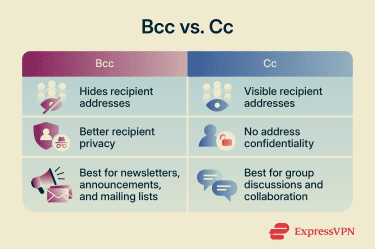
How Bcc affects replies and email threads
In most email clients, when a Bcc recipient clicks "Reply," their response goes only to the original sender. If they use "Reply All," their message goes to the sender and all visible recipients: those listed in the To and Cc fields. This usually doesn’t include other Bcc recipients, whose addresses remain unknown to everyone.
The main risk is that a Bcc recipient may accidentally reveal their own involvement to the visible recipient list. This can cause confusion or discomfort, particularly for recipients who didn't know others had been quietly included.
Why Bcc keeps recipient addresses private
Without Bcc, all recipients' email addresses appear in the message header, making them visible to everyone who receives the email. Exposed addresses can be collected for spam or phishing, or shared further without consent.
Privacy regulators treat this seriously. For example, under the EU's General Data Protection Regulation (GDPR), email addresses that identify a specific individual (such as firstname.lastname@company.com) count as personal data. Exposing them to unauthorized recipients may then constitute a personal data breach, depending on the context and risk.
Failure to use Bcc correctly is consistently among the top non-cyber breaches reported to the U.K.’s Information Commissioner's Office (ICO). The ICO also warns that Bcc may not be sufficient for sensitive personal information, and organizations should consider safer alternatives such as bulk email services, mail merge, or secure data transfer services.
Benefits of using Bcc
- Protecting recipient privacy: Bcc prevents recipients from seeing one another's contact details, helping reduce inadvertent or unauthorized sharing of personal information. In professional contexts, this can also support data protection obligations, especially when addresses identify individuals or reveal sensitive relationships.
- Reducing reply-all clutter: Because Bcc recipients aren’t shown as part of a shared recipient list, Bcc can reduce unnecessary group replies.
- Sending updates efficiently to multiple people: Bcc is well-suited for one-way communications (newsletters, company updates, event invitations, group reminders) where the same message needs to reach many people without creating a shared reply thread.
- Keeping group emails professional: Hiding the full recipient list keeps bulk messages cleaner and more focused, which is especially useful in formal business communications involving external contacts or clients.
Risks and limitations of using Bcc
Bcc can be useful, but it has limits and can create problems if used in the wrong context:
- Deliverability risk: Sending the same message to many recipients from a regular mailbox can trigger provider limits or spam protections, especially if recipients don’t recognize the sender or the message appears to be bulk mail.
- Recipient limits: Most email providers cap the total number of recipients across the To, Cc, and Bcc fields in a single message or over a set period. For large-scale sends, Bcc quickly becomes impractical, and dedicated bulk email services are better suited.
- Not appropriate for sensitive communications: Regulators like the ICO advise against relying on Bcc for emails containing sensitive personal information.
- Miscommunication and trust issues: As mentioned above, Bcc can create confusion or damage trust if recipients later discover that others were quietly included. Bcc recipients can also inadvertently reveal their identities by hitting “Reply All.”
- Situations where transparency matters more: Not every multi-recipient email calls for Bcc. For team projects, decision-making threads, or collaborative workplace discussions, visible recipient lists help everyone understand the full context of the conversation. In these situations, Cc or addressing everyone in the To field is the more appropriate choice.
Learn more: How to protect your email: Step-by-step guide.
How to use Bcc in popular email platforms
The Bcc feature is available on all major email platforms. The following sections show how to find and use this feature on three popular email providers: Gmail, Outlook, and Apple Mail.
How to use Bcc in Gmail
- Click Compose to begin writing a new message.
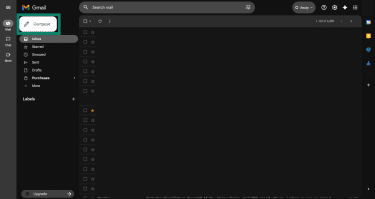
- In the To field, select the Bcc.
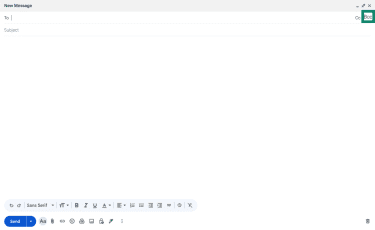
- Enter the recipients' email addresses in the Bcc field.
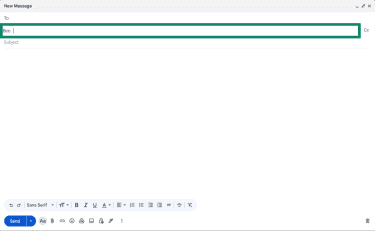
- Add your subject and message, then click Send.
How to use Bcc in Outlook
- Select New email to start a new message.
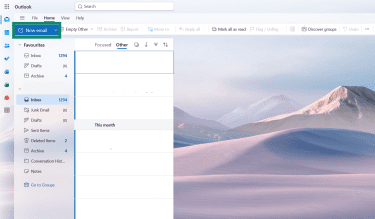
- If the Bcc field is not visible, select Bcc or go to Options > Show fields > Show Bcc, depending on your version of Outlook.
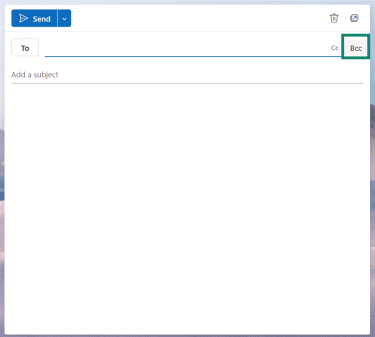
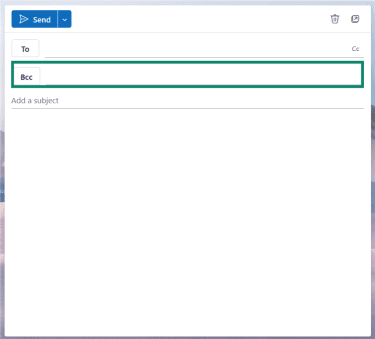
- Enter the email addresses of the recipients you wish to add in the Bcc field. Then, click Send after adding your subject line and message.
How to use Bcc in Apple Mail
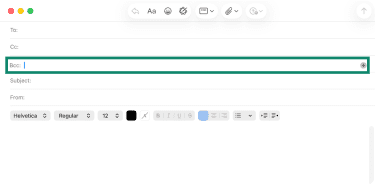
- Start a new email. Click New Message in Apple Mail on Mac, or tap the Compose button on iPhone or iPad.
- On Mac, if you can't see the Bcc field, click the Header Fields button in the message window toolbar, then choose Bcc Address Field. On iPhone or iPad, tap the Cc/Bcc field, then tap Bcc.
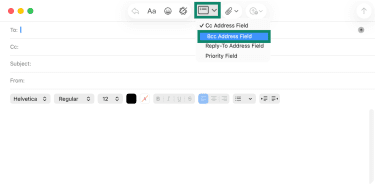
- Enter your recipients’ addresses in the Bcc field.
FAQ: Common questions about Bcc
Can I tell if I was added to Bcc?
What happens if a Bcc recipient replies?
Should I put my own email in the To field?
Can Bcc emails go to spam?
Is Bcc safe for confidential information?
How many people can you Bcc at once?
What is the most professional way to use Bcc?
Take the first step to protect yourself online. Try ExpressVPN risk-free.
Get ExpressVPN