What does nslookup do? A practical guide



Nslookup is a network troubleshooting utility that queries Domain Name System (DNS) servers to retrieve information about domain names and IP addresses.
This guide explains how the nslookup command works, what information it returns, and how to use it for DNS troubleshooting.
What is the nslookup command?
The nslookup command (short for “nameserver lookup”) is a command-line DNS query tool available on Windows, macOS, and Linux. It sends queries to DNS servers to get details about the mapping between domain names and IP addresses.
As well as translating domain names into IP addresses, it can perform reverse lookups to find domain names from IP addresses and examine different types of DNS records. It can be used to verify that DNS resolution is working correctly and to troubleshoot connectivity problems.
How nslookup works
When you execute an nslookup command, the tool sends a query to a DNS server, which processes it and returns the requested information. The nslookup utility displays the results on your terminal. You can query various types of information or records, with the most common highlighted below.
- Address (A): Points a hostname to an IPv4 address. Also used for operating a DNS-based Blackhole List (DNSBL), which is a list of known spammer domains.
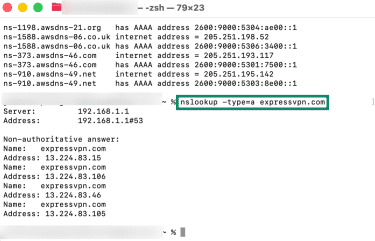
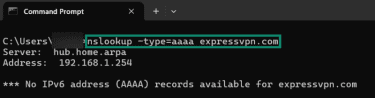
- Quad-A (AAAA): An alternative to the A record that points a hostname to an IPv6 address. Like A records, these can also be used to help manage DNSBL entries.
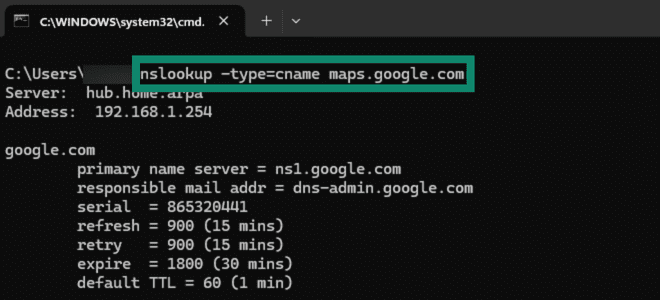
- Canonical Name (CNAME): Maps an alias domain name (like blog.example.com) to its root domain name (example.com). This helps in confirming whether subdomains are properly configured.
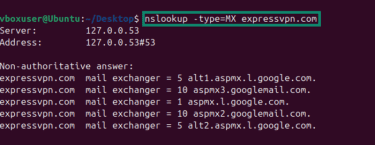
- Mail Exchange (MX): Points to the mail servers responsible for email on behalf of a domain. MX records ensure mail-sending servers are able to deliver emails addressed to your domain.
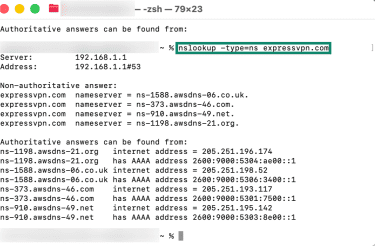
- Nameserver (NS): Identifies authoritative name servers that carry a domain’s records. Domains often rely on multiple nameservers to increase their reliability.
- Pointer (PTR): Performs a reverse DNS lookup, pointing an IP address back to a domain name. Used by logging systems that record only IP addresses or by anti-spam filters that reverse-check email domains to confirm the associated IP address belongs to a legitimate mail server.

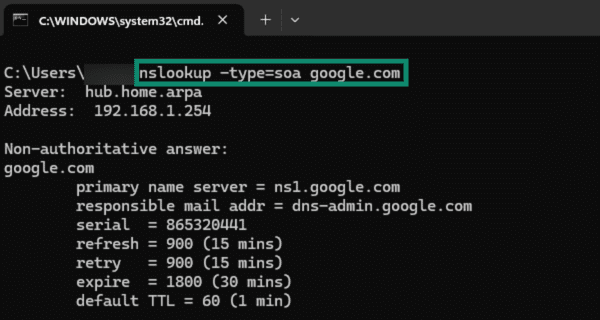
- Start of Authority (SoA): Provides administrative information about a domain, such as its primary nameserver and the mail address of the administrator. SoA records are the first records transferred when DNS data moves from one nameserver to another.
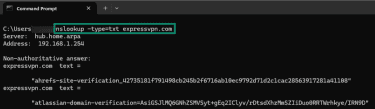
- Text (TXT): Returns human-readable TXT records that domain administrators manually enter into their domain’s record. Useful in helping email servers determine if messages are from trusted sources.
Using nslookup on different operating systems
Below you’ll find instructions on how to use nslookup on Windows, Linux, and macOS.
Using nslookup on Windows
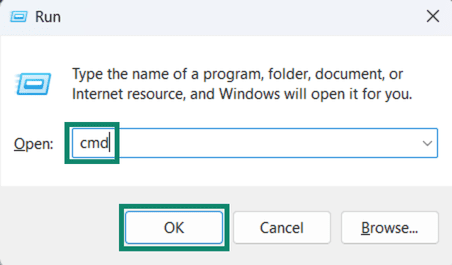
- Press the Windows + R keys to open the Run command window.
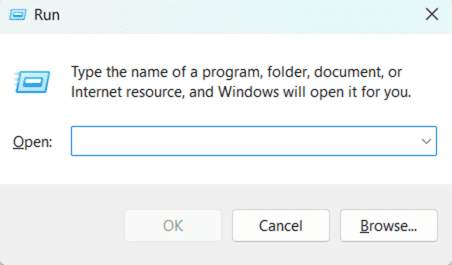
- Type cmd in the Run window and press Enter or click OK.
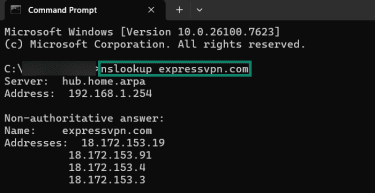
- Type nslookup and press Enter or add parameters, such as -type=A, to run a specific query.
Using nslookup on Linux
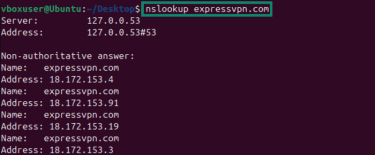
- Right-click the desktop on your Linux device and click Open in Terminal.

- Enter nslookup followed by any required parameters (such as -type=A) to run a query.
Using nslookup on macOS
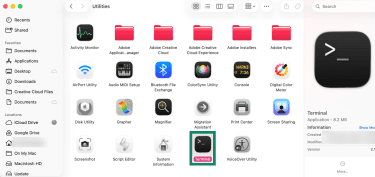
- Open Finder on your macOS device, access the Applications menu from the left-hand side, and open Utilities.
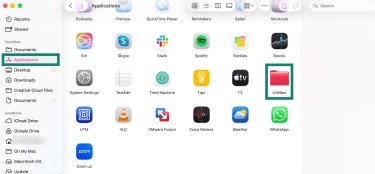
- Double-click Terminal in the Utilities folder to open it.
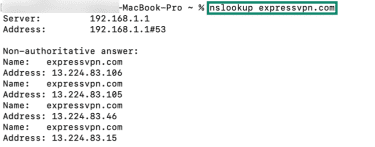
- Type nslookup followed by the domain and any parameters you need to run a query.
Using nslookup in interactive mode
Nslookup has two modes: interactive and non-interactive.
Non-interactive mode runs when a complete query is entered, as in the examples above.
Interactive mode starts when only nslookup is entered and Enter is pressed. “>” appears on the next line to indicate that interactive mode is active.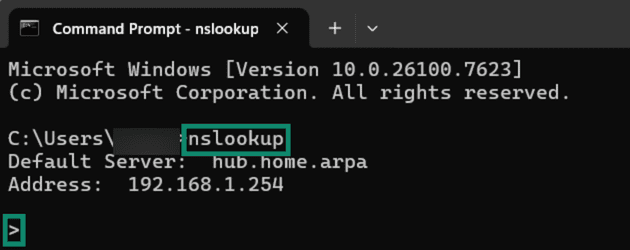
When you’re in interactive mode, you can execute multiple queries in succession without needing to type the nslookup command repeatedly. The example below runs a lookup on google.com and expressvpn.com in succession by simply entering the domain names.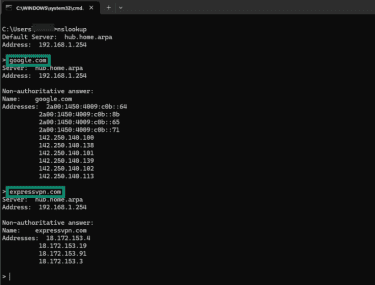
If you want to use a specific query type for all subsequent queries, you can specify this using the set and querytype parameters. The example below uses set querytype=mx to ensure all subsequent queries look up the responsible mail servers of a domain. The query type parameter isn’t case sensitive, and you can use any of the aforementioned record types in place of mx.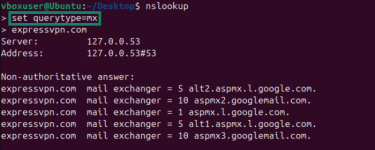
While in interactive mode, you can also type the help command to view a detailed list of nslookup commands and other useful information.
Authoritative vs non-authoritative records
Nslookup queries sometimes return a result indicating a “Non-authoritative answer,” meaning the information was retrieved from the local DNS server cache rather than from the domain’s authoritative server.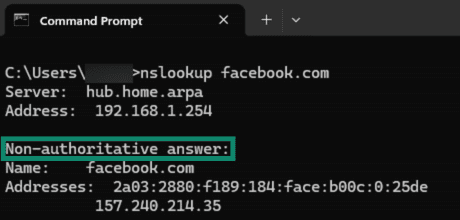
Since this record is from the local DNS cache, it’s possible that it might be outdated. In order to get an up-to-date record, the authoritative server of a domain has to be queried. You can get a domain’s authoritative server using the SoA query type. It’s listed next to the primary name server in the query’s output.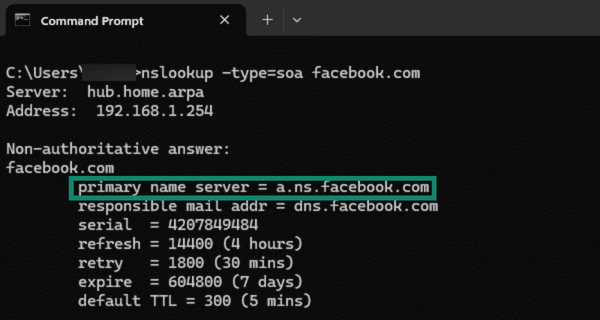
Once you have the authoritative server of a certain domain, you can add it at the end of your command to query it directly and get an up-to-date record.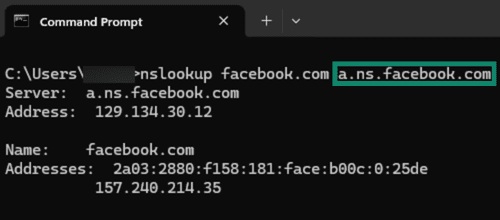
Common DNS issues you can diagnose with nslookup
The nslookup command can help diagnose various DNS-related problems affecting network connectivity and web access.
Identifying name resolution problems
If a website you manage won’t load, checking whether the domain name resolves is a key early step. Run “nslookup domain.com” to see if the DNS server returns an IP address. If you receive an error like “Non-existent domain,” the domain name may not exist or may not be properly configured.
Failed DNS resolutions can also be due to misconfigured nameserver records. Nslookup can help verify if your domain is delegated to the correct DNS servers through an NS query like “nslookup -type=ns domain.com,” showing which nameservers are currently published for the domain. If the listed nameservers are incorrect, missing, or don’t match what you configured at your domain registrar, this indicates the nameserver settings aren’t configured properly at your registrar and need to be resolved.
You can also use nslookup to check if any updates to your domain’s DNS records have successfully propagated across the internet. To do this, query multiple public DNS servers like Google's 8.8.8.8 or Cloudflare's 1.1.1.1 by adding them to the end of your query. If they return different results, your domain’s DNS records haven't fully propagated yet.
Common nslookup errors and what they mean
The following are some common errors seen when using nslookup:
- Timed out: The server failed to respond to a request within a set amount of time and retries. The amount of time and number of retries can be adjusted using “nslookup set timeout=number” and “nslookup set retry=number” parameters.
- No records: “*** Can't find domain: No answer” error means that the DNS server doesn’t have records for the chosen query type for a particular domain.
- Nonexistent domain: The specified domain name does not exist.
- Connection refused: The DNS server refused to respond to the request.
- Server failure: The DNS server failed to return a valid answer due to inconsistencies in its own records.
- Format error: The request wasn’t in the proper format.
Nslookup vs. other network diagnostic tools
Apart from nslookup, there are several querying utilities, each with its own strengths and use cases.
Nslookup vs. dig
The dig (Domain Information Groper) command is often considered more powerful than nslookup for advanced DNS diagnostics.
Dig supports more query types and provides a more detailed output by default, including query time, message size, and every other piece of information in a DNS response, making it good for a thorough investigation. Nslookup provides a simpler and more concise output that's good for basic troubleshooting.
Nslookup vs. ping
Ping is a connectivity testing tool that sends Internet Control Message Protocol (ICMP) echo requests to measure latency (the time it takes for a data packet to travel from your device to a server and back again, measured in milliseconds) and check if a host is reachable. It uses the operating system's standard name resolution, which includes checking the hosts file (a local system file that manually maps domain names to IP addresses before a DNS query is sent to external servers), local DNS cache, and DNS servers.
In contrast, nslookup is a DNS-specific query tool that sends queries directly to DNS servers. It doesn't test connectivity or measure latency but focuses solely on DNS information.
When nslookup is the right tool to use
Nslookup is best used for diagnosing basic DNS resolution problems rather than general network issues. It verifies domain-to-IP resolution, checks DNS propagation, and examines MX, NS, or TXT records.
FAQ: Common questions about nslookup
What is the main purpose of the nslookup command?
Where does nslookup get its information from?
What DNS records can nslookup query?
Can nslookup work without an internet connection?
Is nslookup still useful today?
Take the first step to protect yourself online. Try ExpressVPN risk-free.
Get ExpressVPN

















 Support Center
  FAQ
FAQ  VPN Setup Tutorials